 Ribbonfly Marquee
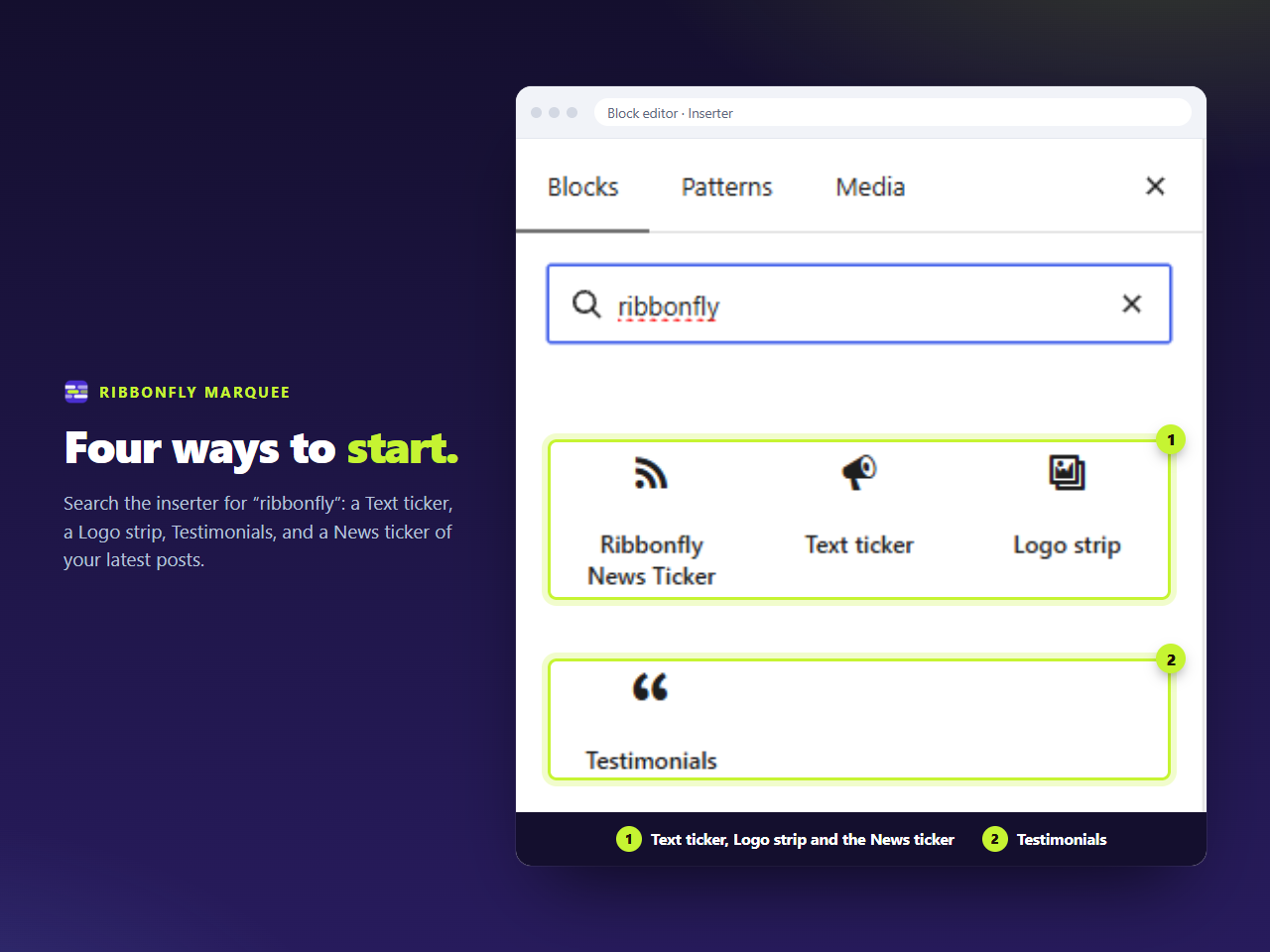
Add it in four steps
- Edit the page and press + to open the inserter.
- Search for ribbonfly and pick Text ticker.
- Replace the three placeholder lines with your own. Each paragraph is one item.
- Open the sidebar and set the speed, the spacing and, if you like, a soft fade at both edges.
Adding a fourth line is adding a fourth paragraph. Removing one is deleting it. There is no separate list to maintain.
Choosing a speed that can be read
Scrolling text is read on the move, so the speed matters more than the effect. The speed control is in pixels per second, which means 60 is 60 on a phone and 60 on a wide monitor: the strip does not run faster just because it is wider. Start at the default and lengthen the gap between lines before you speed anything up; a message that is on screen for a few seconds is a message that can be read.
Try a marquee
Change the settings and watch the same engine the plugin uses. Nothing you type leaves this page.
One line, many lines
A single announcement will loop on its own: if the content is shorter than the strip, the plugin repeats it until one group is at least as wide as the strip, so there is never an empty stretch. That means a one-sentence banner and a ten-item ticker are built the same way.
Links and styling
Because the items are normal blocks, a link inside a paragraph is a normal link and the colours come from the block's own colour settings. The marquee block itself offers background and text colour, font size, line height, padding and margin, and it can be set to wide or full width.